Model Parent-Child Relationships
Create ownership relationships where child resources belong to a parent — comments to articles, order items to orders. Unlike flexible references, strict reference means children can't exist without their parent, and your API URLs reflect the hierarchy automatically.
What is Strict Reference?
Strict reference creates a parent-child relationship between collections where:
- Each child resource belongs to exactly one parent resource
- Child resources are managed through the parent rather than directly
- The Flux API URL structure reflects the hierarchy automatically
Common use cases include:
- Comments belonging to articles
- Order items belonging to orders
- Chapters belonging to books
- Variants belonging to products
Prerequisites
Before creating a strict reference collection, you need:
- A parent collection with at least one published resource. See Create Collections in the Dashboard.
- Appropriate permissions to manage collections in the target environment.
Step 1 – Create the Child Collection
- Open your environment in the FoxNose dashboard.
- Click Database in the sidebar.
- Navigate to the parent collection (e.g., Articles).
- Click Add subfolder to create a nested collection.
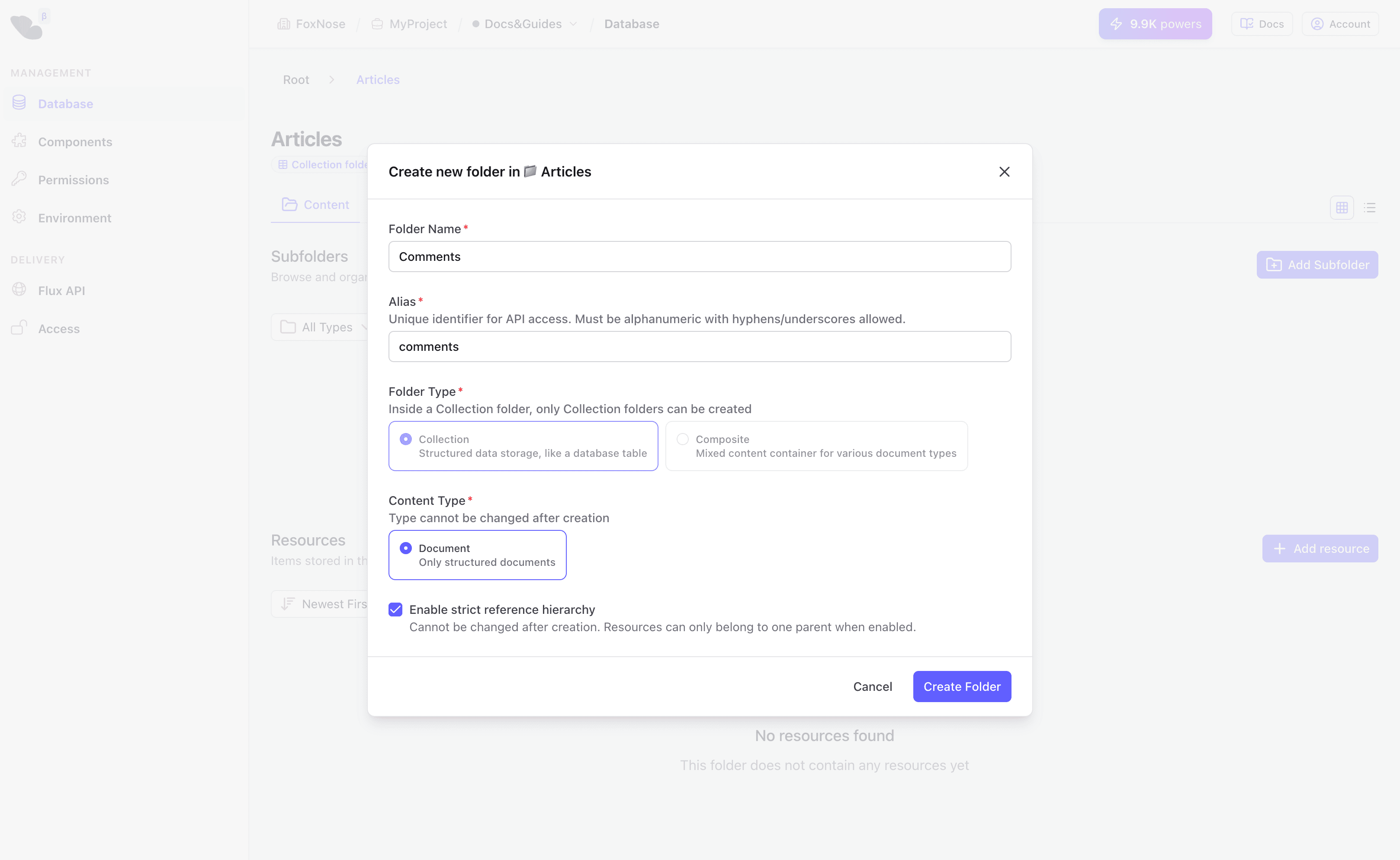
- Configure the collection:
| Field | Description | Example |
|---|---|---|
| Collection Name | Display name for the collection | Comments |
| Collection Alias | URL-safe identifier | comments |
| Strict Reference | Enable the checkbox to create parent-child relationship | ✓ Checked |
- Click Create collection.
The "Strict Reference" checkbox is only available when creating a subfolder inside another collection. This establishes the hierarchical relationship.
Step 2 – Define the Child Schema
After creating the collection, define its schema:
- Switch to the Schema tab in the new collection.
- Add fields for your child content (e.g.,
bodyfor comment text). - Click Publish version to activate the schema.
The child collection now has its own schema, independent of the parent, but resources will be linked through the strict reference relationship.
Step 3 – Add Child Resources
With strict reference enabled, you cannot add resources directly to the child collection. Instead, you add them through the parent resource:
- Navigate to the parent collection (Articles).
- Open a parent resource (e.g., an article).
- Look for the Related resources tab — this only appears when strict reference children exist.
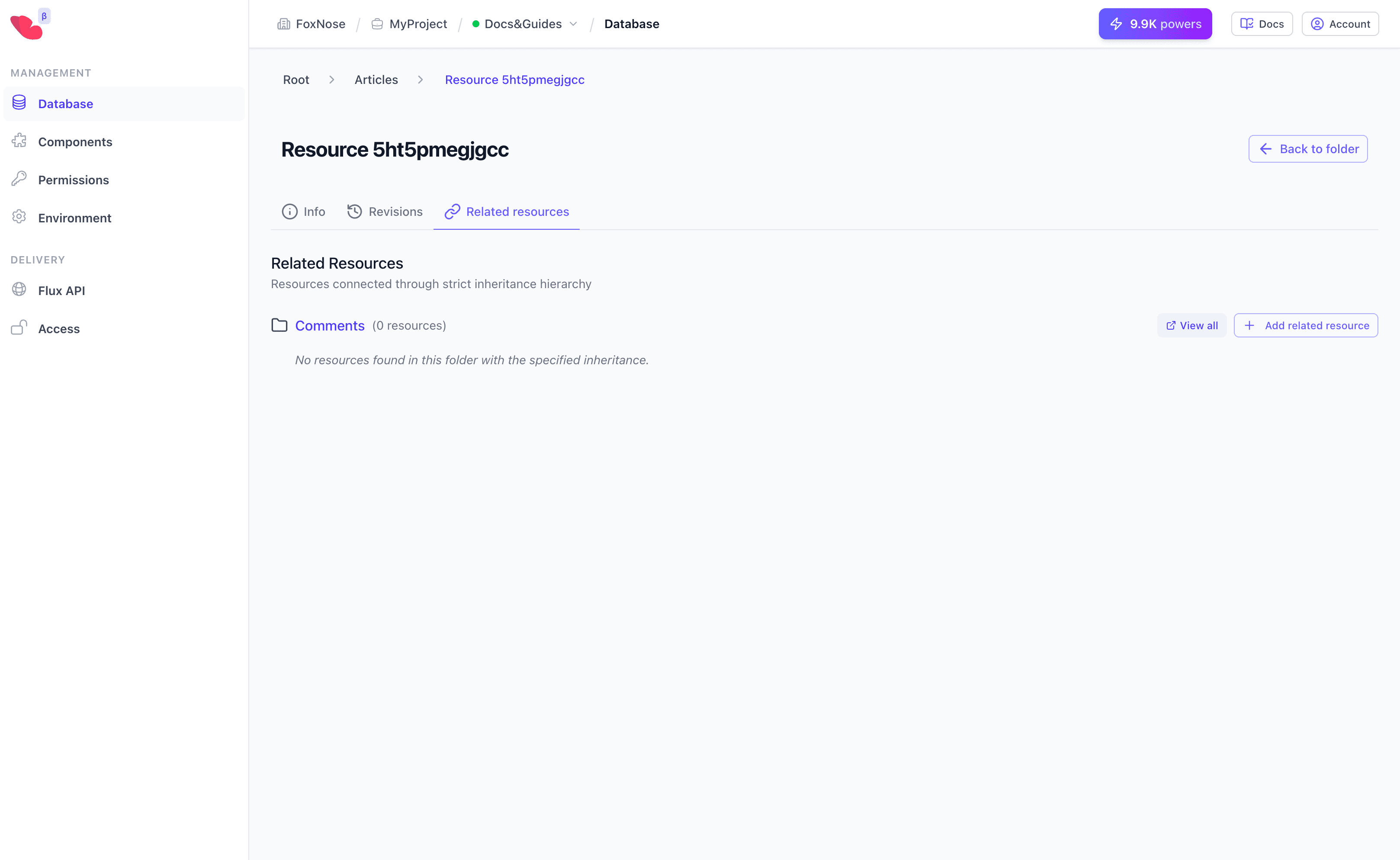
- Click Add related resource under the child collection section.
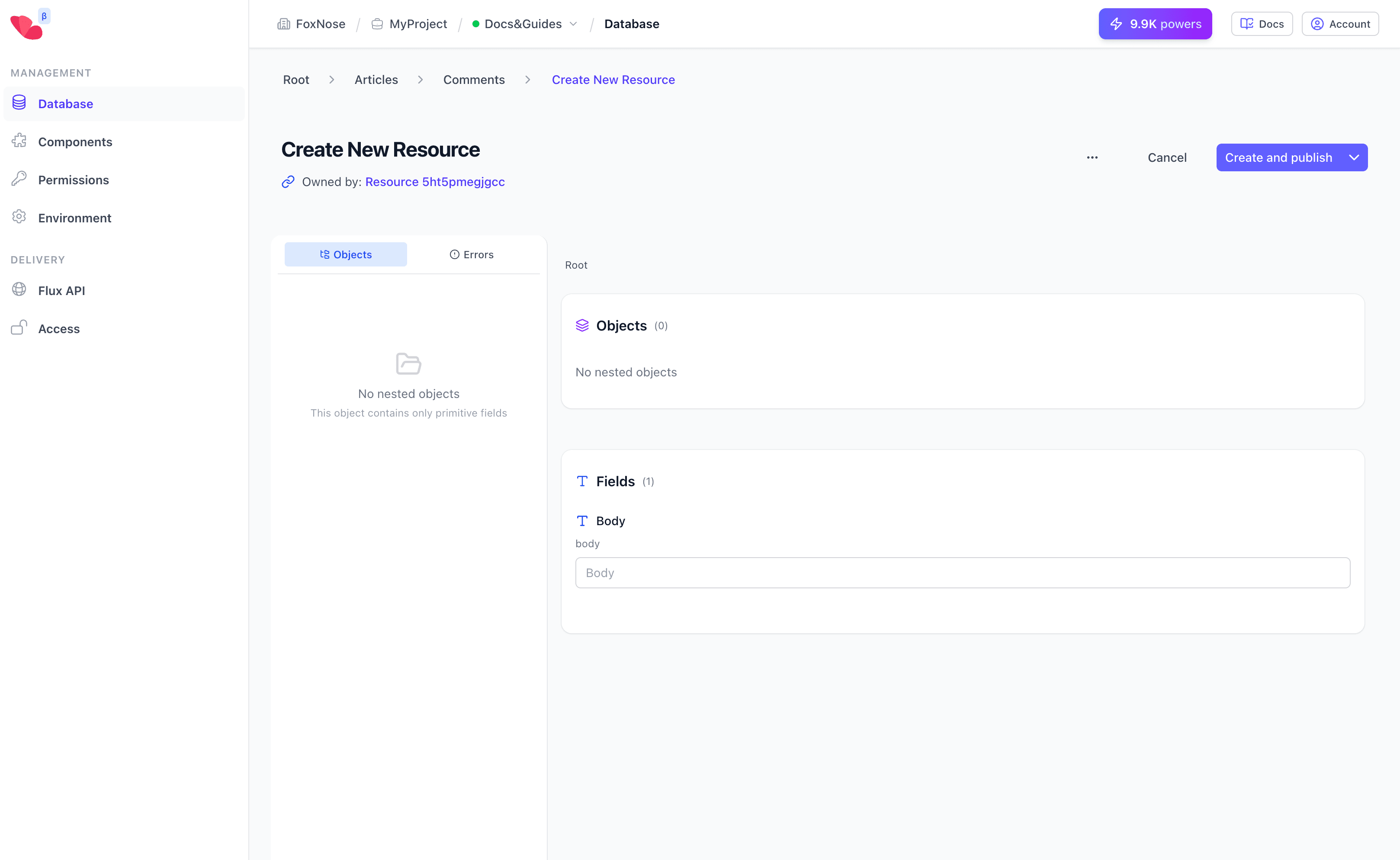
- Fill in the child resource fields and save.
Notice the "Owned by" indicator at the top of the editor — this shows which parent resource owns this child.
Step 4 – Connect to Flux API
When you connect a strict reference collection to a Flux API, the URL structure automatically reflects the hierarchy:
- Go to Delivery → Flux API in the sidebar.
- Select your API or create one.
- Connect the child collection (Comments) using the Connected Collections tab.
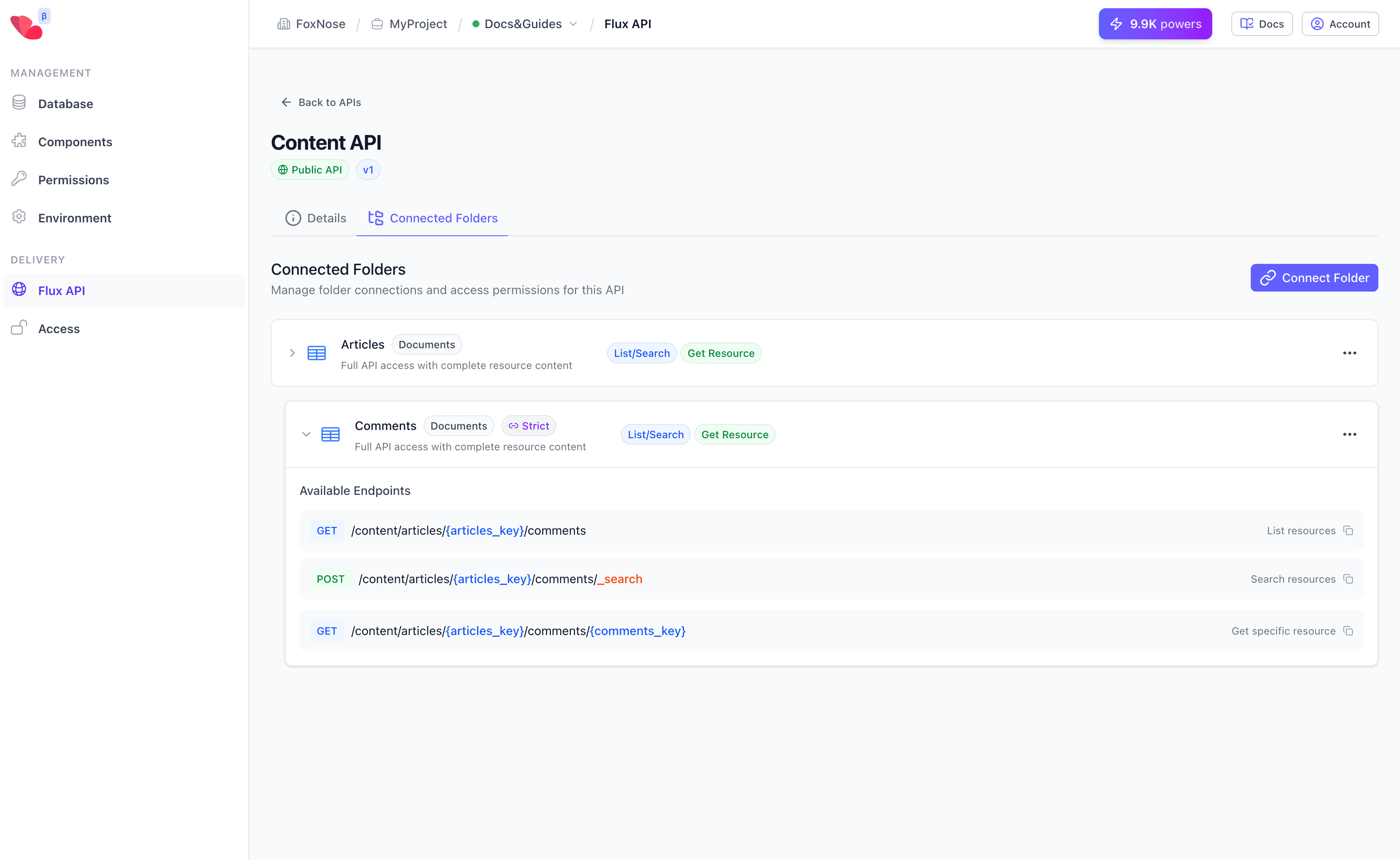
The endpoints follow a nested structure that includes the parent resource key:
| Endpoint | Description |
|---|---|
/{prefix}/{parent}/{parent_key}/{child} | List all child resources |
/{prefix}/{parent}/{parent_key}/{child}/_search | Search child resources |
/{prefix}/{parent}/{parent_key}/{child}/{key} | Get specific child resource |
For example, with prefix content, parent articles, and child comments:
GET /content/articles/{articles_key}/comments              → List comments for an article
POST /content/articles/{articles_key}/comments/_search     → Search comments for an article
GET /content/articles/{articles_key}/comments/{comments_key} → Get specific comment
Step 5 – View and Manage Child Resources
After creating child resources, they appear in the parent's Related resources tab with the resource count.
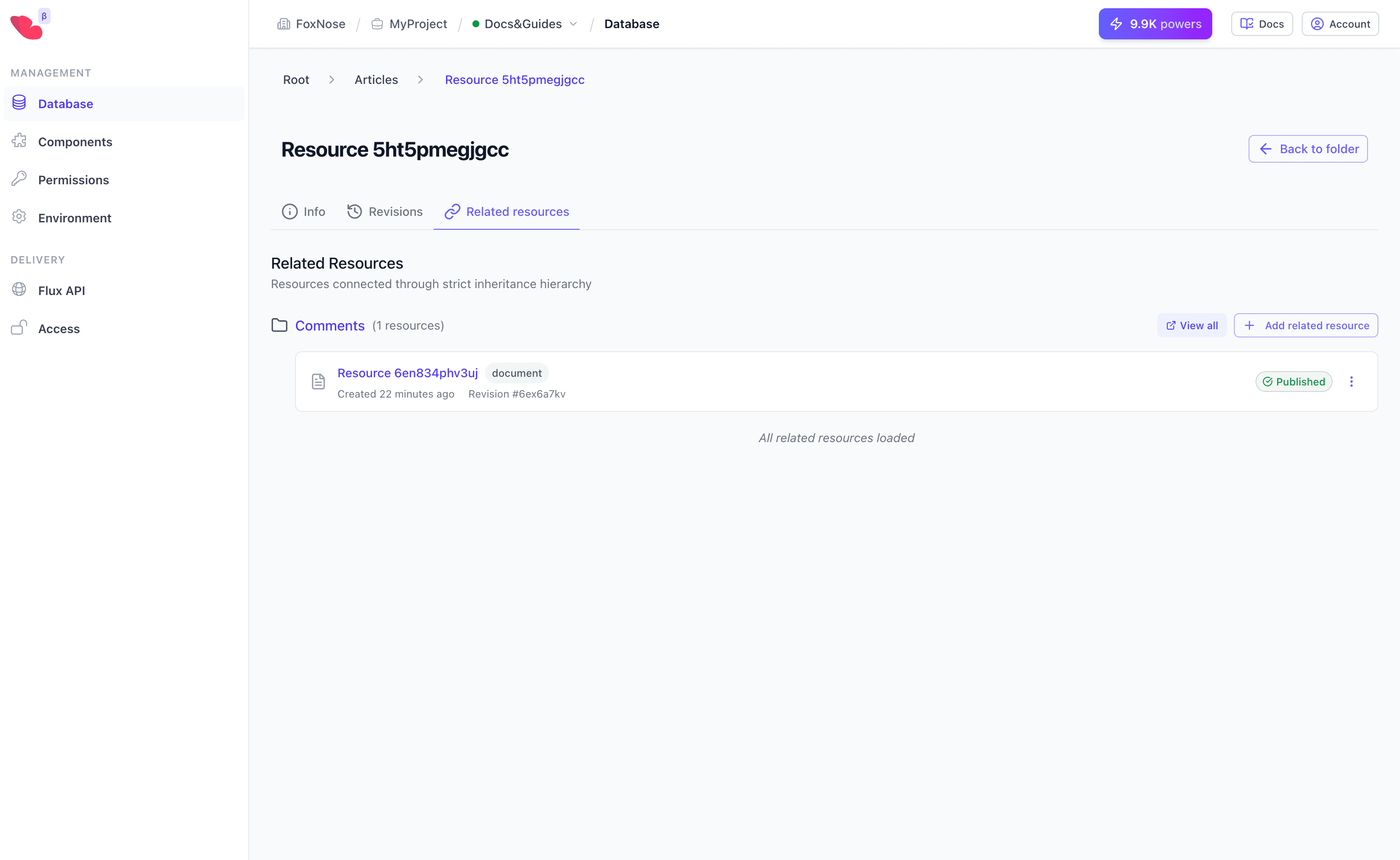
From this tab you can:
- See the count of related resources for each child collection
- Click Add related resource to create more children
- Click View all to open the child collection filtered by this parent
When you click View all, you're taken to the child collection with an automatic filter applied:
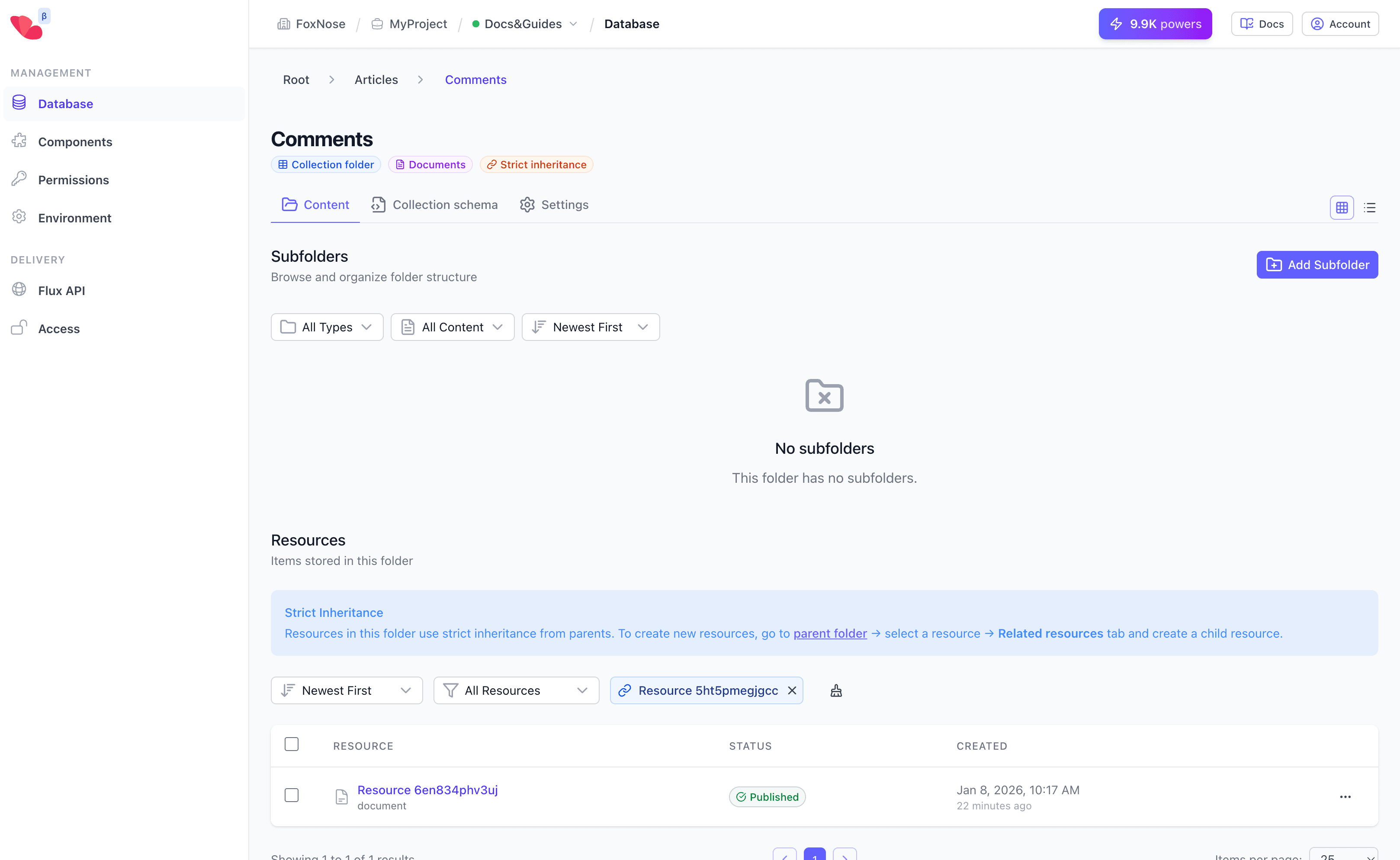
The filter badge shows which parent resource owns the displayed children. This makes it easy to manage all comments for a specific article without seeing comments from other articles.
You can clear the filter using the Clear filter button to see all resources in the child collection regardless of parent.
API Response Structure
When fetching child resources, the response includes the parent reference:
{
  "results": [
    {
      "_sys": {
        "key": "cmt_abc123",
        "folder": "comments",
        "parent": {
          "key": "art_xyz789",
          "folder": "articles"
        }
      },
      "data": {
        "body": "Great article, very helpful!"
      }
    }
  ]
}
The _sys.parent field identifies which parent resource owns each child.
Best Practices
- Use strict reference for true ownership — When child content has no meaning without the parent (comments without article, order items without order).
- Use regular references for associations — When resources can exist independently but relate to each other (articles referencing categories).
- Plan your hierarchy depth — Strict reference supports one level of nesting. For deeper hierarchies, consider using regular references.
What You've Learned
You now understand both ways to connect content in FoxNose:
| Relationship | Use Case | URL Structure |
|---|---|---|
| Reference | Associations (author → user) | Flat, use populate |
| Strict Reference | Ownership (comment → article) | Nested under parent |
Next Step
Your content model is complete. Now let's learn to query it effectively — search, filter, and retrieve exactly the data you need.
Strict reference also powers a bigger pattern: per-user agent memory with enforced tenant scoping and one-call tenant deletion — see Multi-Tenant Agent Memory.