Manage Roles and API Keys
Control who can access your APIs and what they can do. Create roles with specific permissions, generate API keys for your services, and secure both content management and delivery without sharing master credentials.
FoxNose uses role-based access control: roles define permissions, API keys inherit those permissions. This lets you manage access granularly and rotate keys without reconfiguring permissions.
Two APIs, Two Access Systems
FoxNose has two APIs, each with its own roles and keys:
| Management API | Flux API | |
|---|---|---|
| Purpose | Administer content, schemas, and settings | Deliver content to applications |
| Dashboard Location | Permissions (under Management) | Access (under Delivery) |
| Permission Model | Granular (per-action permissions) | API-based (access to specific Flux APIs) |
| Typical Users | Backend services, CI/CD, admin tools | Frontend apps, mobile clients, AI agents |
Part 1: Management API Roles and Keys
Management API credentials let you programmatically create collections, publish content, manage schemas, and configure your environment.
Create a Management Role
- Open your environment in the dashboard.
- Click Permissions in the sidebar (under Management).
- On the Roles tab, click Add role.
- Enter a name (e.g., "Content Editor") and click Create.
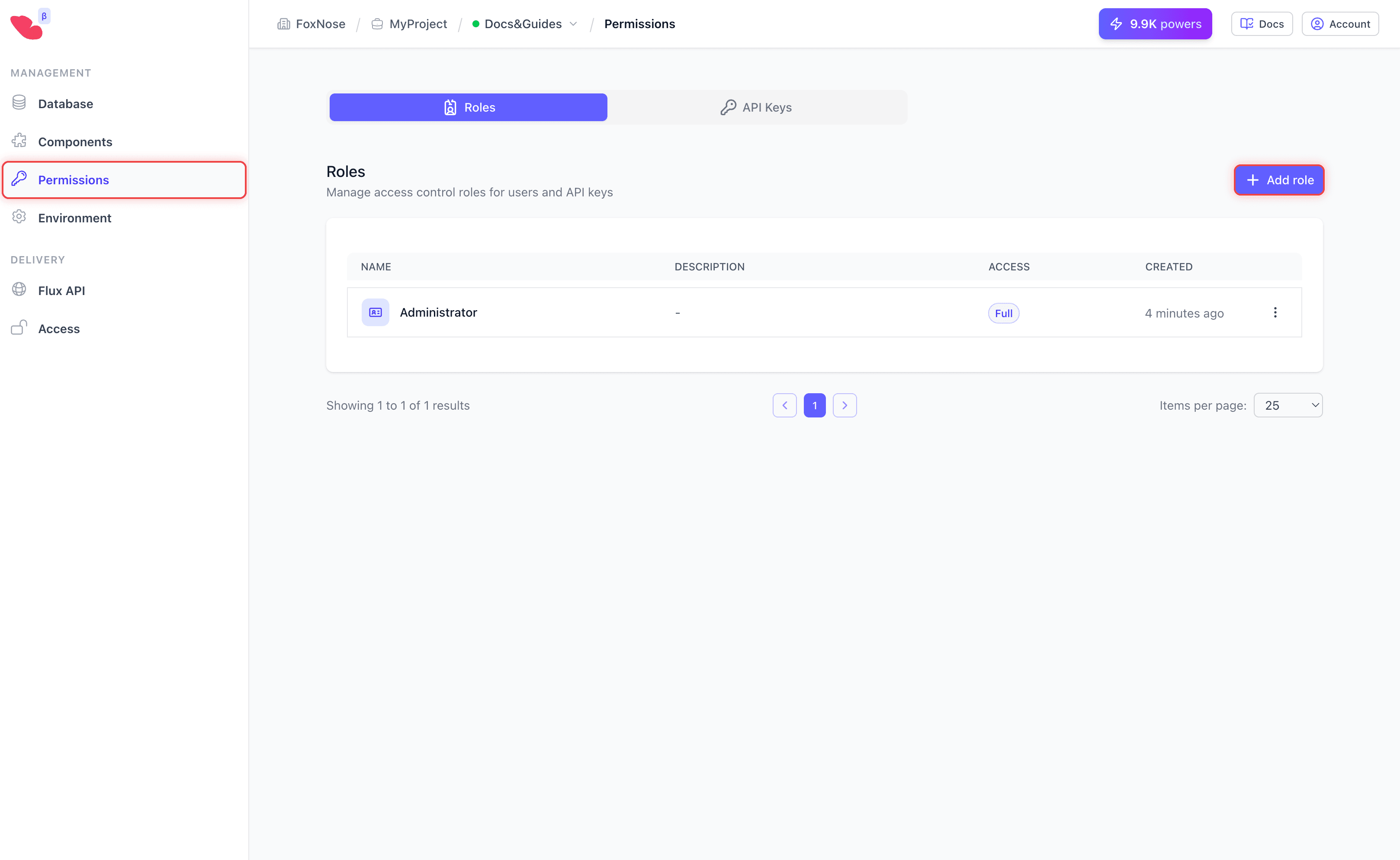
- Click on the new role to open its settings.
Configure Permissions
The role detail page shows four permission categories:
- Content Management — collections, resources, schemas
- Environment Management — environment settings
- Management API — roles and API keys for administration
- Flux API — Flux APIs, roles, and keys for delivery
For each permission, toggle individual Create/Read/Update/Delete checkboxes, or enable Full Access at the top to grant everything.
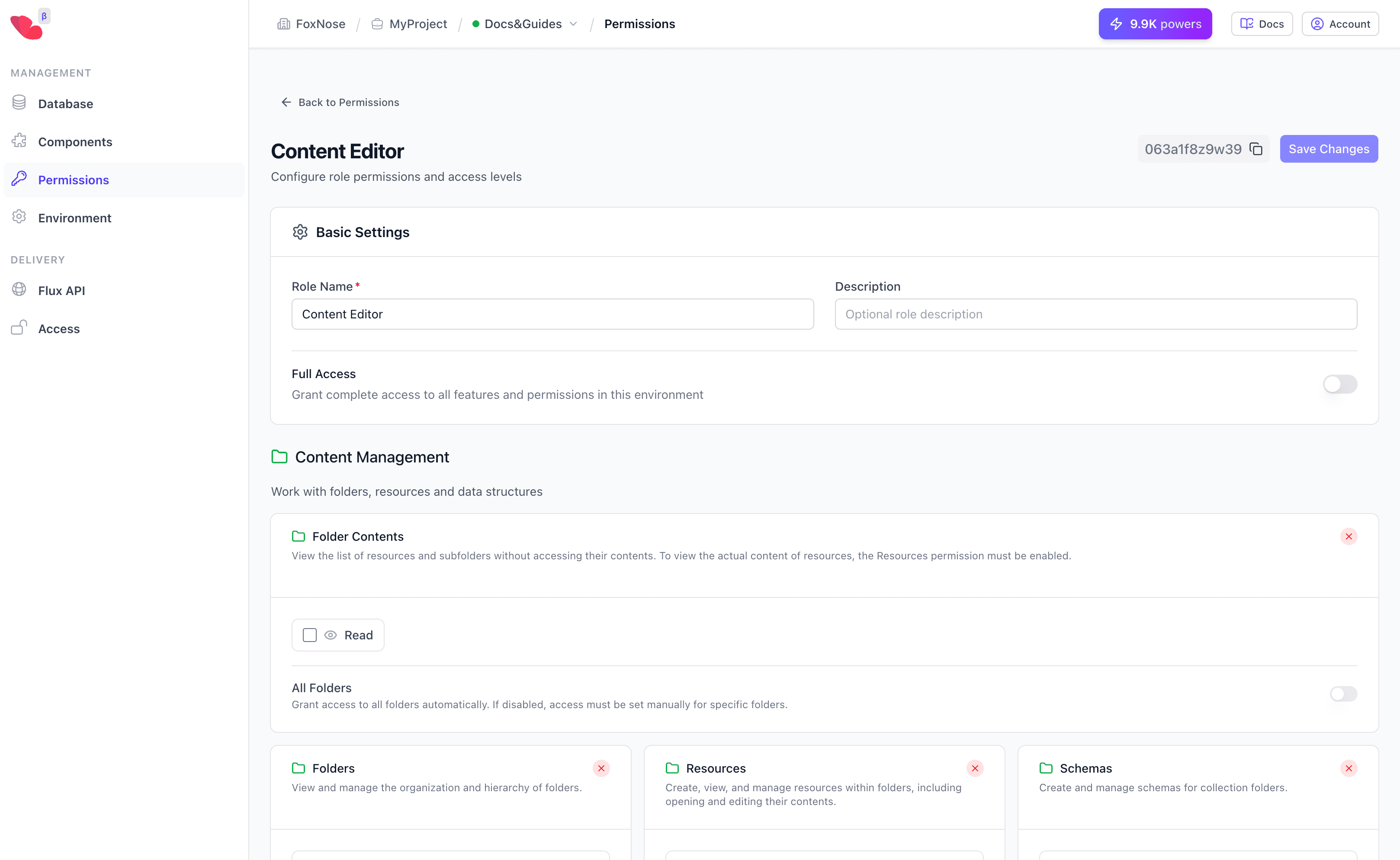
For detailed descriptions of each permission, see Access Control → Permission Categories.
Create a Management API Key
- Switch to the API Keys tab in Permissions.
- Click Create key.
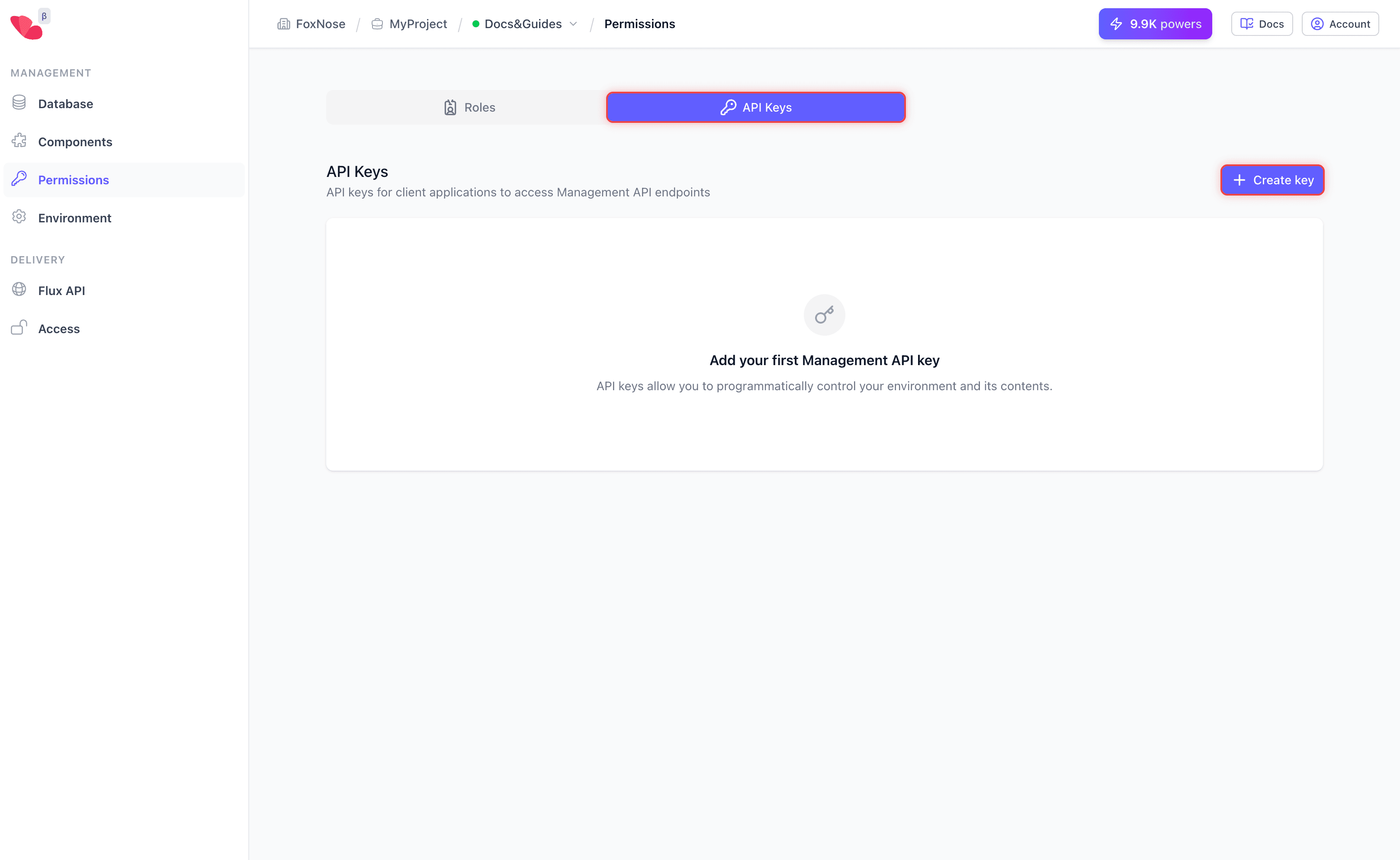
- Fill in the form:
- Description: A human-readable label (e.g., "CI/CD Pipeline Key")
- Management Role: Select the role this key should use
- Click Create API key.
- Copy the secret key immediately — it's shown only once.
The key pair consists of:
- Public Key: Safe to log; used to identify the key
- Secret Key: Must be kept secure; used to authenticate requests
See Management API Authentication for how to use these keys in API requests.
Part 2: Flux API Roles and Keys
Flux API credentials let client applications access your delivery endpoints. These are read-only credentials used by frontends, mobile apps, and AI integrations.
Create a Flux Role
- Click Access in the sidebar (under Delivery).
- On the Roles tab, click Add role.
- Enter a name (e.g., "Mobile App Access") and click Create.
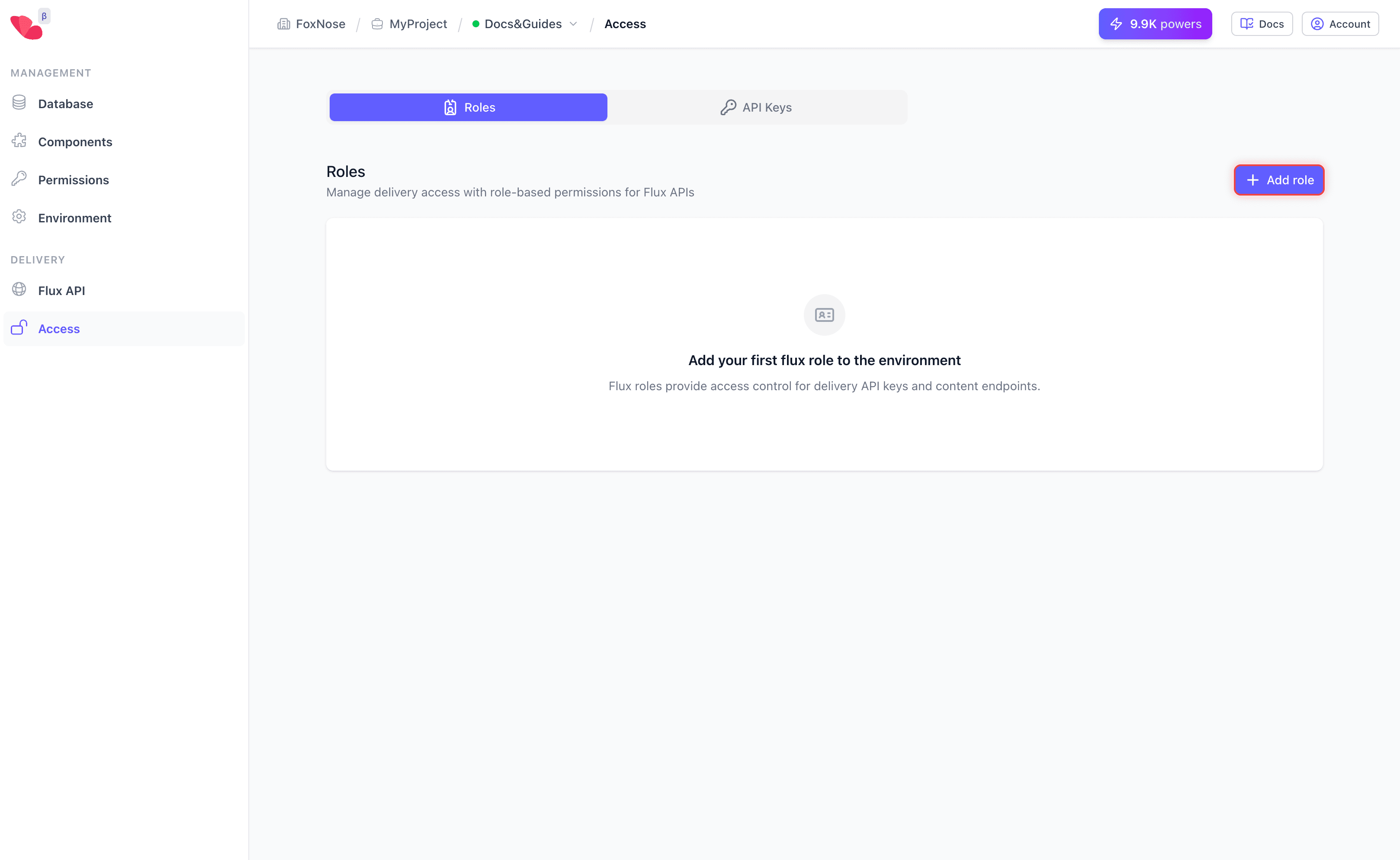
- Click on the new role to configure it.
Configure API Access
Flux roles control which Flux APIs a key can access:
- All APIs toggle: When enabled, the role automatically has access to all Flux APIs in the environment, including any created in the future.
- Per-API selection: When "All APIs" is disabled, you can select specific Flux APIs from the list.
This is useful when you have multiple Flux APIs for different purposes:
- A public API for your marketing site
- A private API for your mobile app
- An internal API for AI agents
Each can have different roles with access to only the relevant APIs.
Create a Flux API Key
- Switch to the API Keys tab in Access.
- Click Add API key.
- Fill in the form:
- Description: Label for this key (e.g., "Production iOS App")
- Flux Role (optional): Assign a role, or leave unset to configure later
- Click Create API key.
- Copy the secret key immediately — it won't be shown again.
See Flux API Authentication for how to use these keys when calling Flux endpoints.
Best Practices
Separate Keys by Purpose
Create different API keys for different services:
- One key for your web frontend
- One key for your mobile app
- One key for your AI pipeline
- One key for CI/CD
If one key is compromised, you can revoke it without affecting other services.
Use Descriptive Names
Name roles and keys clearly:
- Role: "Content Editor - Marketing Team"
- Key: "Production Web App - v2"
This makes it easy to audit access and identify which key to revoke if needed.
Principle of Least Privilege
Grant only the permissions each role actually needs:
- Content editors don't need environment management
- CI/CD pipelines don't need to manage API keys
- Frontend apps only need Flux API access, not Management API
Rotate Keys Periodically
For production systems, consider rotating API keys periodically:
- Create a new key with the same role
- Update your application to use the new key
- Verify everything works
- Delete the old key
Next Step
Your API is secured. Ready to build something powerful?
Related Resources
- Management API Authentication — Using keys in Management API requests
- Flux API Authentication — Using keys in Flux API requests
- Access Control Overview — Understanding the full permission model