Create a Folder
Organize your content and define its structure. In this guide, you'll create a folder, add the fields your content needs, and publish a schema ready for resources.
Prerequisites
- Access to the FoxNose dashboard (app.foxnose.net) with permissions to edit the target environment.
- An existing project and environment (e.g.,
Production). New accounts create aPersonalorganization and a defaultProductionenvironment automatically.
Step 1 – Open the Environment
- Sign in at app.foxnose.net.
- Pick your organization (Personal for single-user accounts).
- Choose the project you want to modify.
- On the project page, select the environment (the default is
Production). You land on the Database section of that environment.
- API reference:
List All Environments.
Step 2 – Add a Folder
- In the Database section, click Add Folder.

- Fill out the dialog:
- Folder Name – Display label for editors (e.g.,
Articles). - Alias – URL-safe identifier; becomes part of API paths (e.g.,
articles). - Folder Type –
Collectionfor uniform entries,Compositefor component-based content. - Content Type – Select the initial schema backing this folder. New projects default to "Collection".
- Folder Name – Display label for editors (e.g.,
- Click Create Folder. The folder now appears in the list.
- API reference:
Create Folder.
Step 3 – Publish a Schema Version
- Select the new folder to open the detail panel.
- Switch to the Collection Schema tab.
- Click Create Version. FoxNose creates draft version
v1and opens it automatically. - Go to the Schema tab, choose Add Field, and configure the field (name, key, type, properties). Repeat for each field you need.
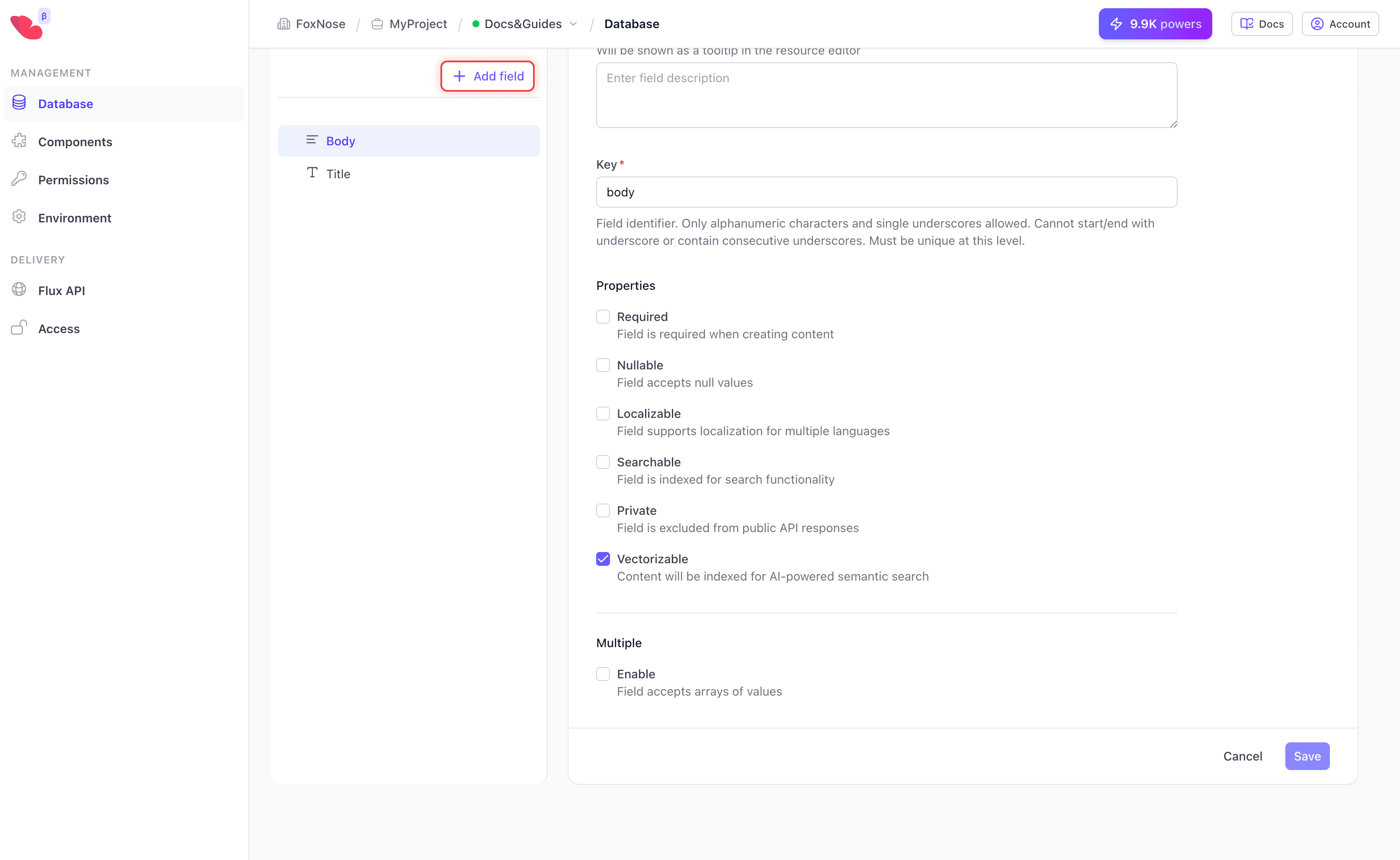
- Once all fields are added, click Publish. The version's status changes from
DrafttoPublished, making it available for content.
- API references:
Create Version,Create Field, andPublish Version.
What You've Built
You now have:
- A folder that organizes your content
- A published schema that defines the structure of your resources
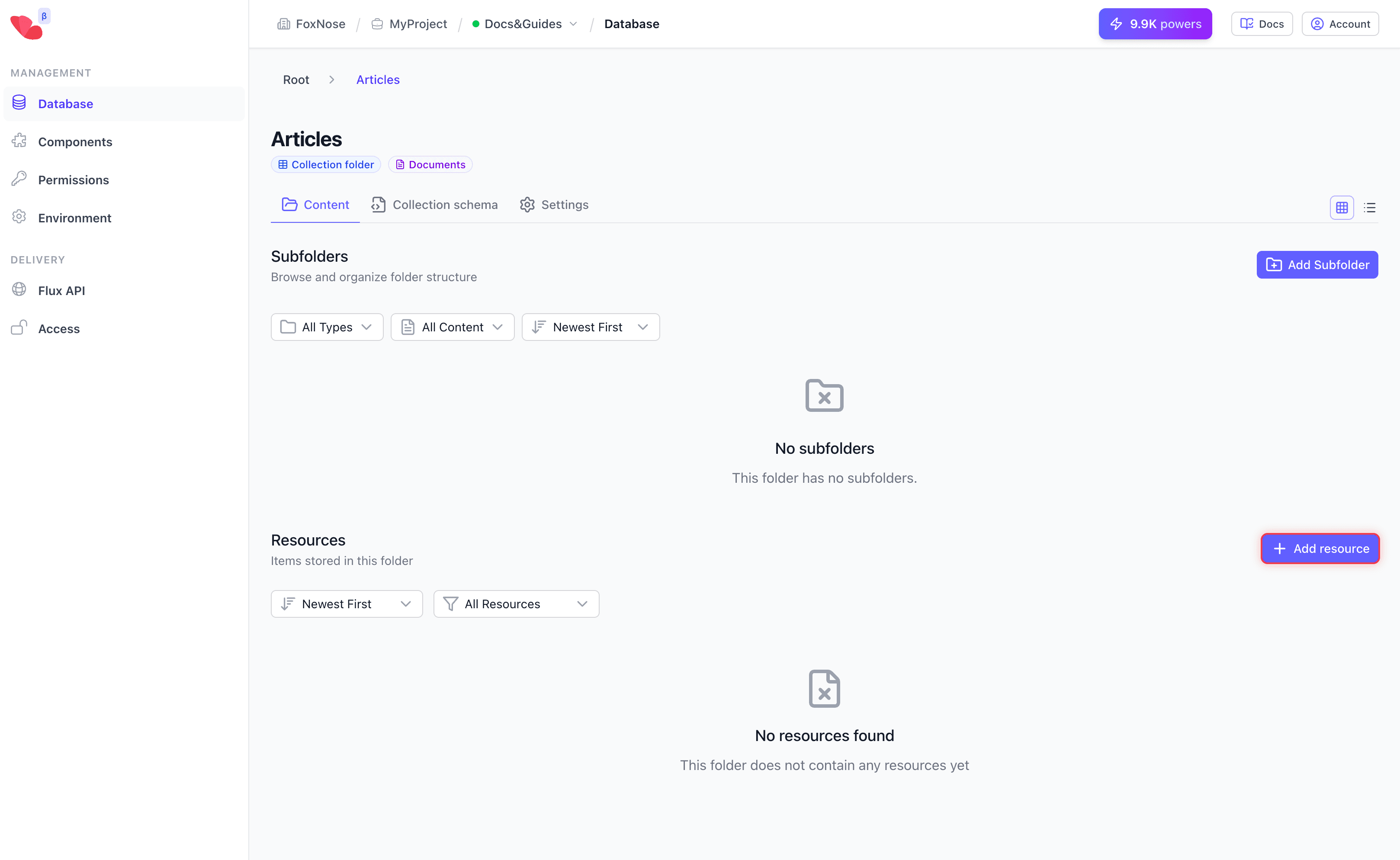
- An empty container ready for content
Tips
- Use plural aliases and lowercase (e.g.,
articles,products) to keep URL paths predictable. - Draft schema changes in a non-production environment first, then copy versions across environments via the Management API.
- API reference:
Create Folder,Create Version.
Next Step
Your folder is ready — now let's add content to it.