Expose Content via Flux API
Make your content accessible to any application — websites, mobile apps, AI systems. You'll create a Flux API, connect your collections, and get HTTP endpoints ready to serve your data.
Prerequisites
Before creating a Flux API, you need:
- At least one collection with published content. See Create Collections in the Dashboard if you haven't set one up yet.
- Appropriate permissions to manage Flux APIs in the target environment.
Step 1 – Navigate to Flux API
- Open your environment in the FoxNose dashboard.
- Click Flux API in the sidebar under Delivery.
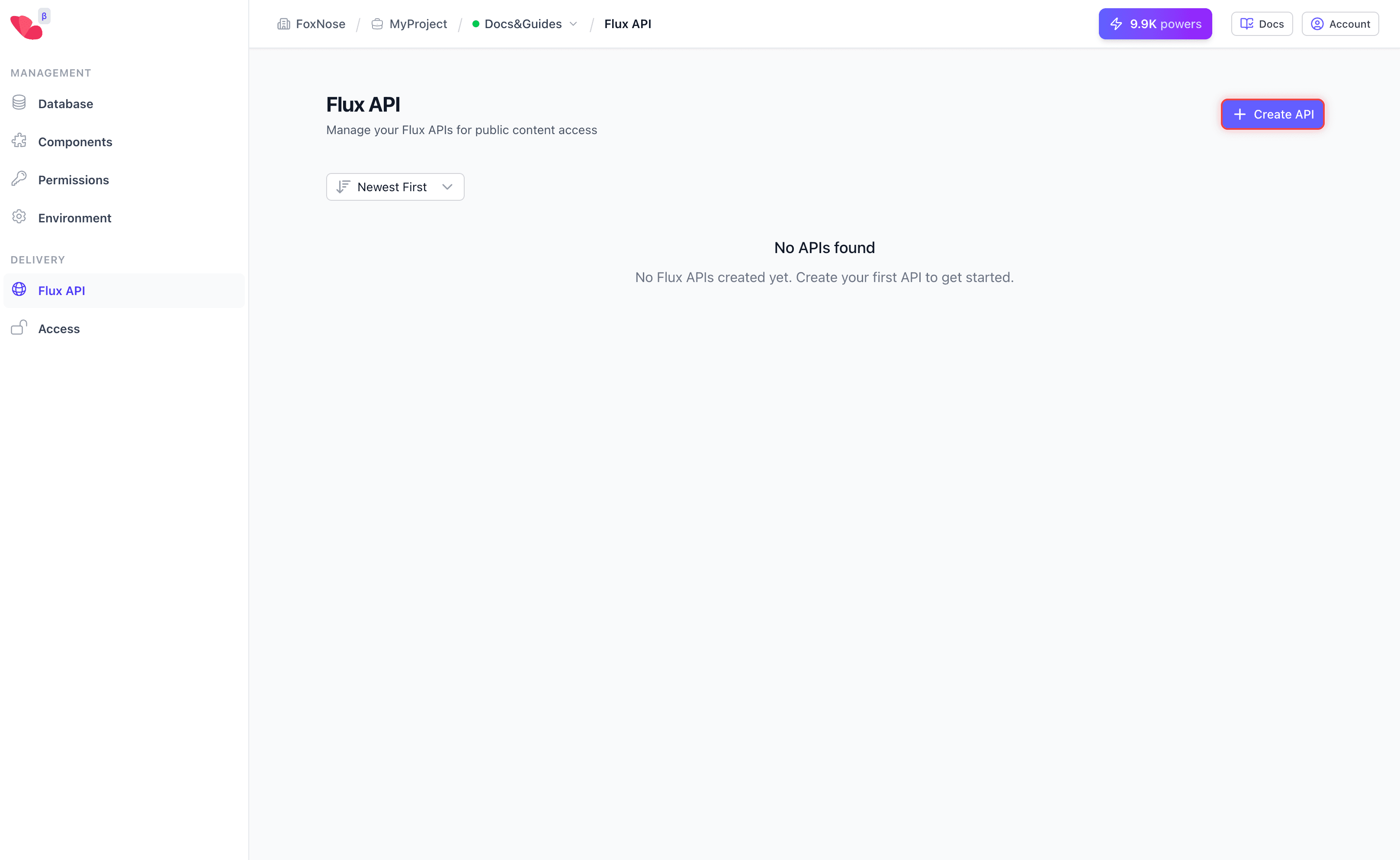
- Click Create API to open the creation dialog.
Step 2 – Configure the API
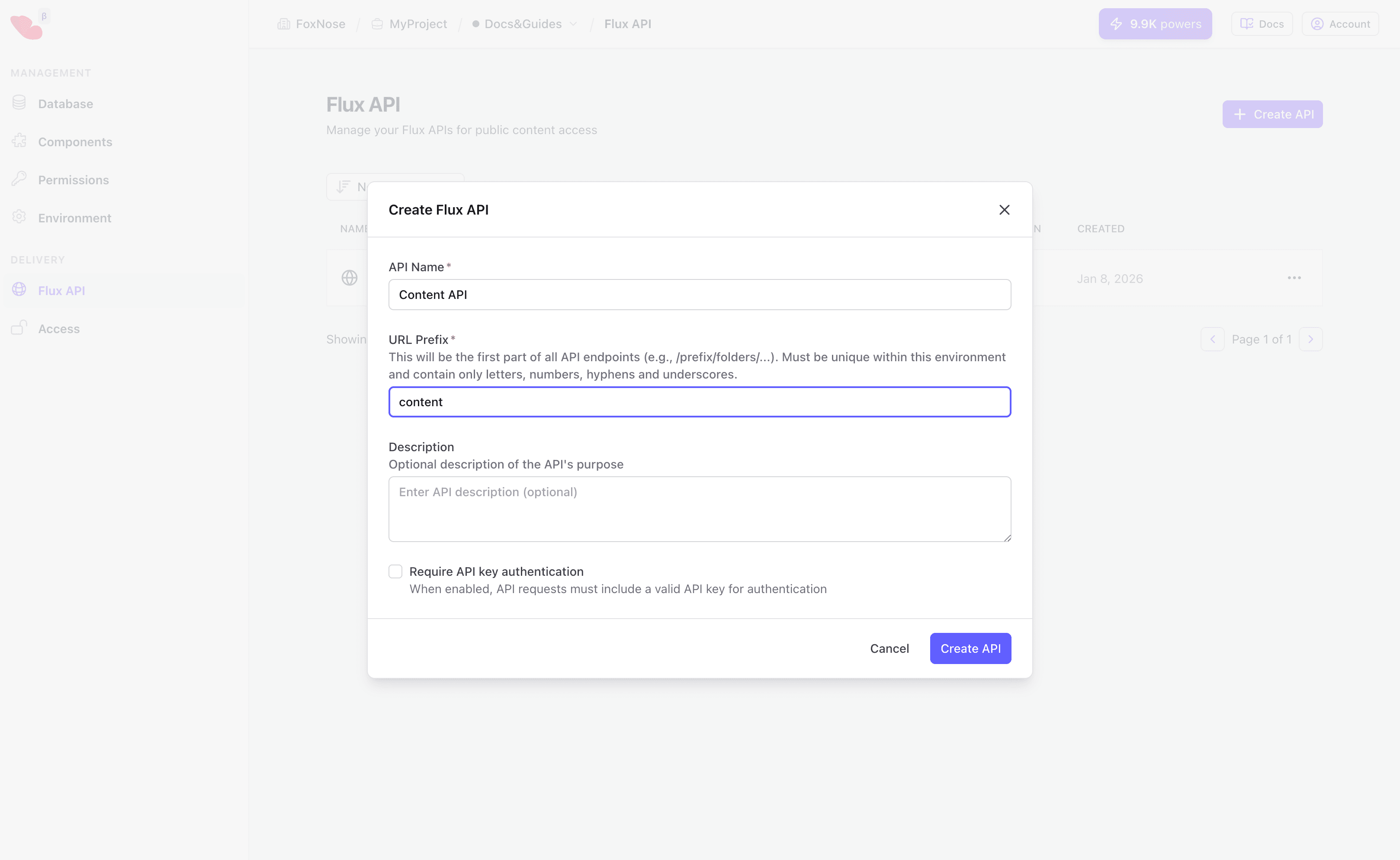
Fill out the dialog:
| Field | Description | Example |
|---|---|---|
| API Name | Display name for the API | Content API |
| Path Prefix | URL path segment for all endpoints | content |
| Access | Public (no auth) or Private (requires API key) | Public API |
Click Create API to create your Flux API.
The path prefix becomes part of your API URL: https://{environment_key}.fxns.io/{prefix}/...
Step 3 – Connect a Collection
After creating the API, you need to connect collections to expose their content.
- In the API detail view, switch to the Connected Collections tab.
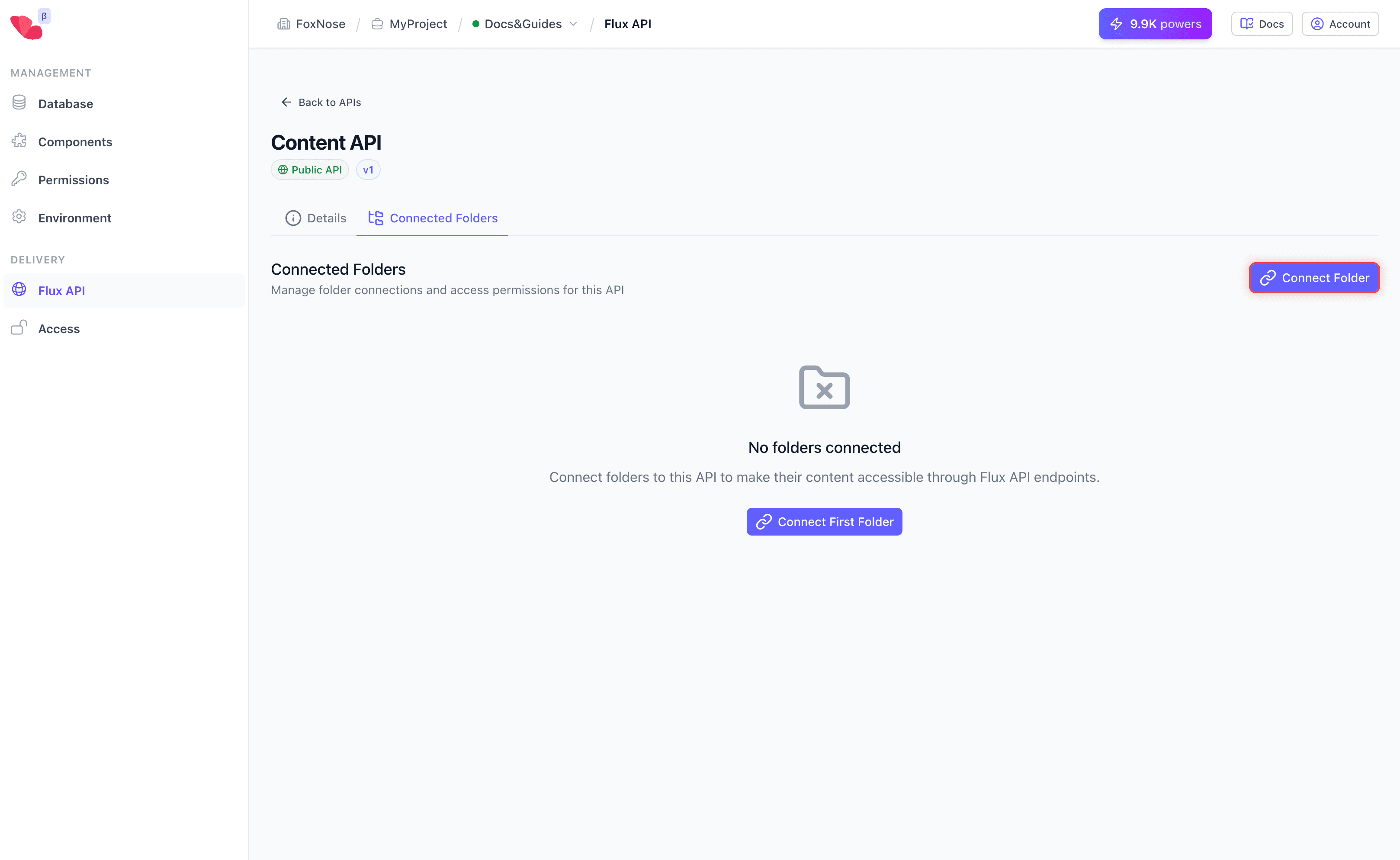
- Click Connect Collection to open the connection dialog.
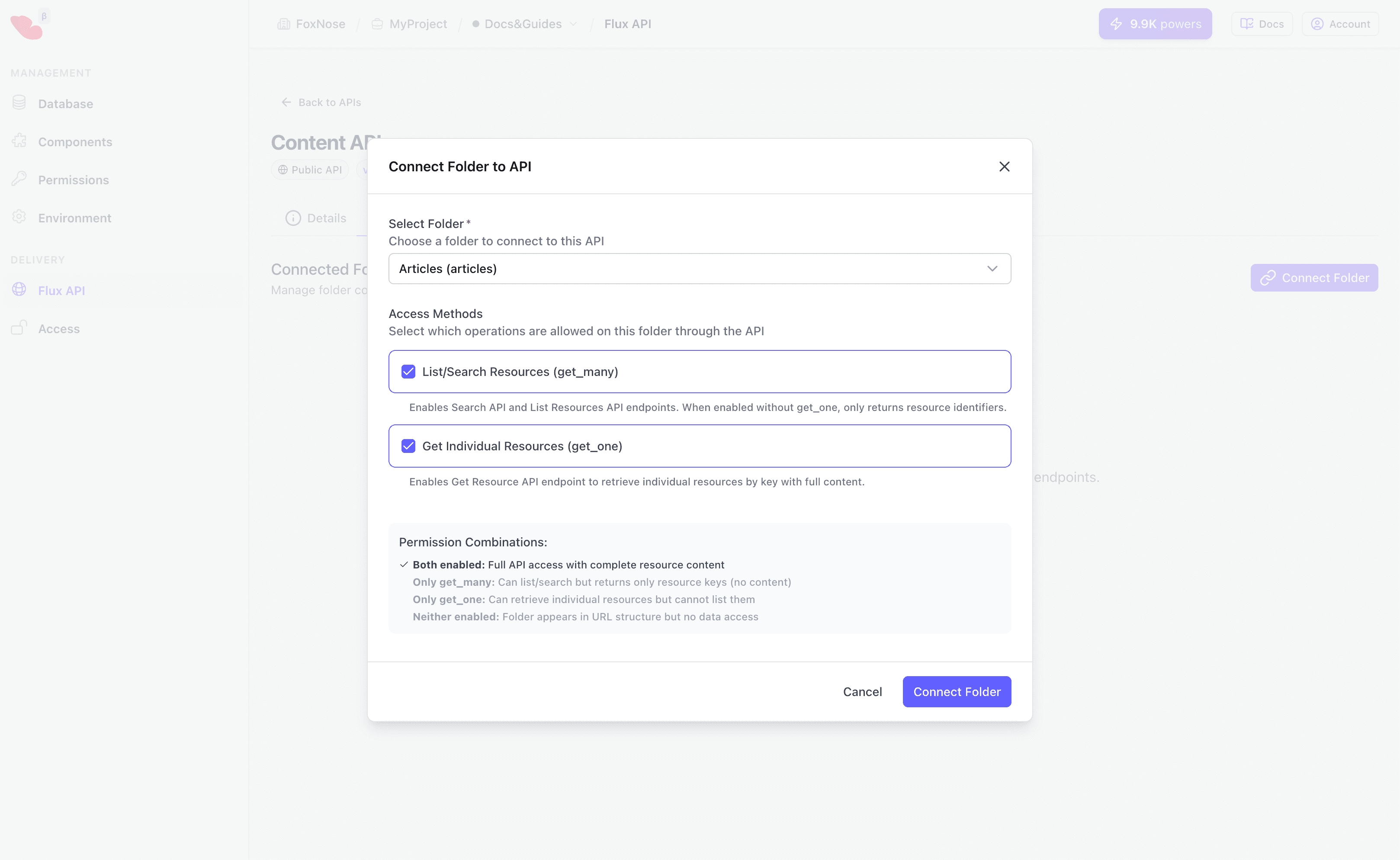
- Configure the connection:
- Select Collection — Choose which collection to connect
- Access Methods — Select which operations to allow:
| Method | Description |
|---|---|
| List/Search Resources (get_many) | Enables listing and searching resources in this collection |
| Get Individual Resources (get_one) | Enables fetching individual resources by key |
- Click Connect Collection to complete the connection.
Step 4 – Verify the Connection
After connecting, the collection appears in the Connected Collections list with its access permissions.
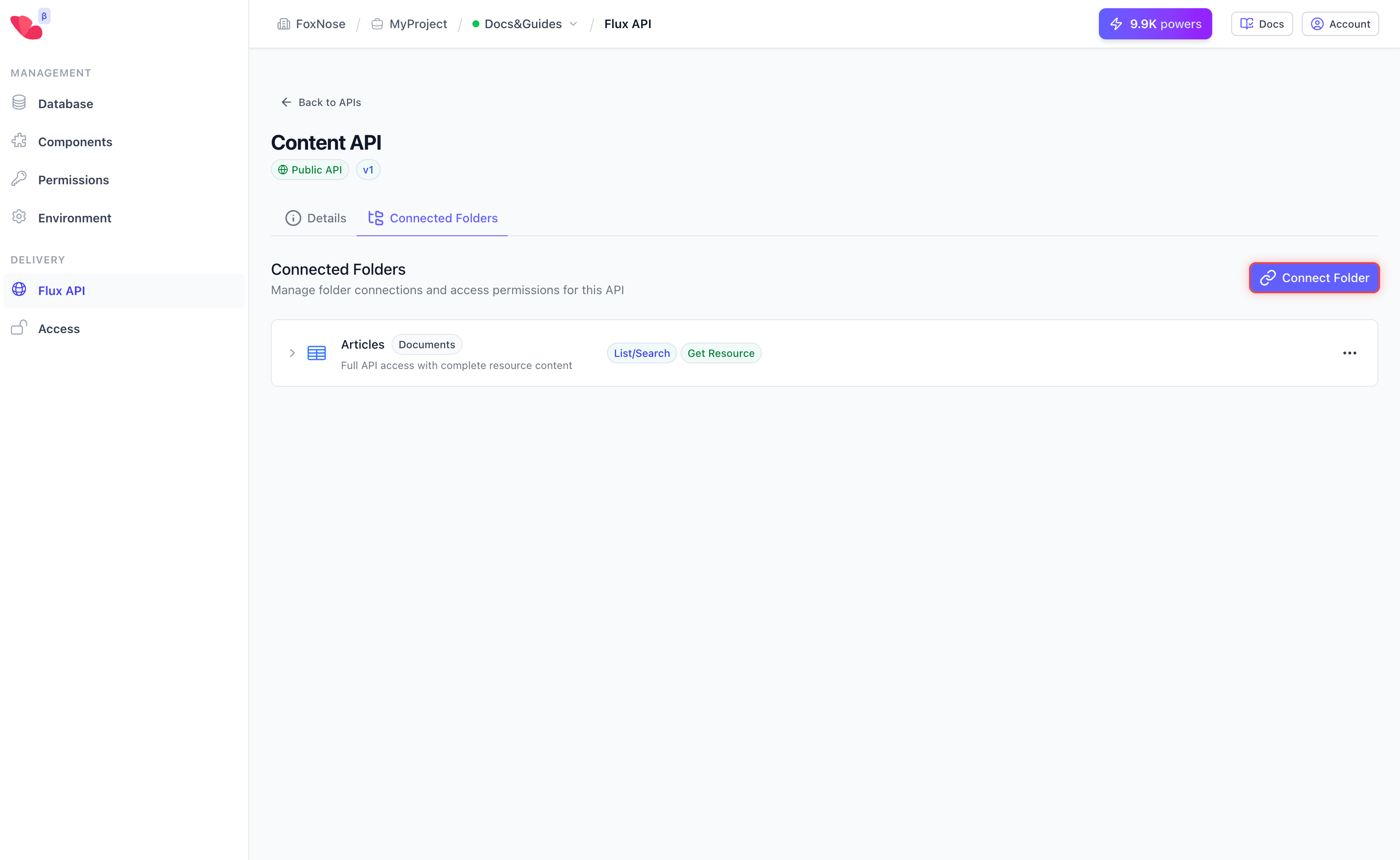
Your content is now accessible at:
https://{environment_key}.fxns.io/{prefix}/{collection_alias}
For example, if your environment key is 7c9h4pwu, prefix is content, and collection alias is articles:
https://7c9h4pwu.fxns.io/content/articles
Step 5 – View Available Endpoints
Click on a connected collection to expand it and see all available API endpoints.
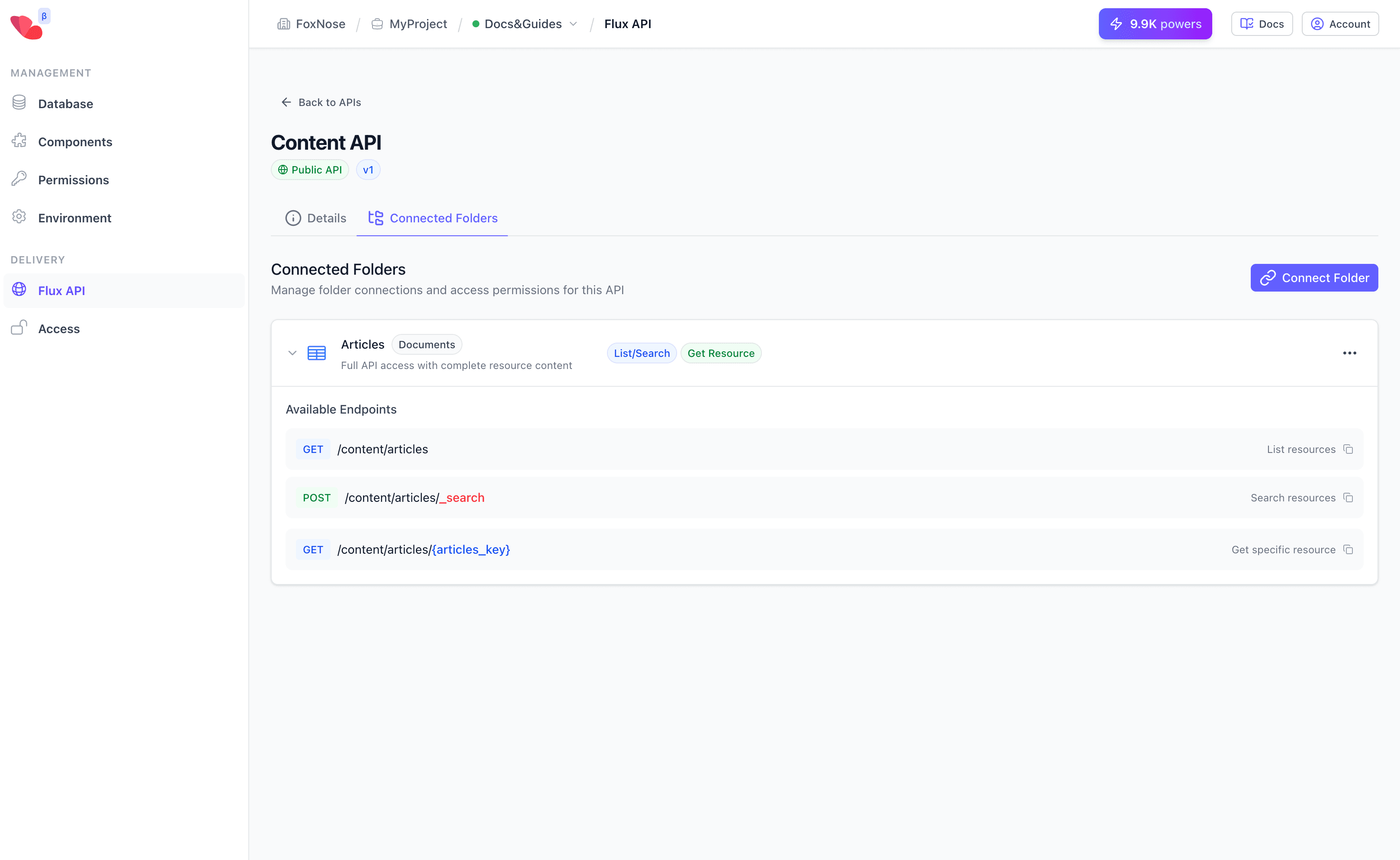
Each collection shows its endpoints based on the access methods you enabled:
| Endpoint | Method | Description |
|---|---|---|
/{prefix}/{collection} | GET | List all resources in the collection |
/{prefix}/{collection}/_search | POST | Search resources with filters or vector search |
/{prefix}/{collection}/{key} | GET | Get a specific resource by its key |
Click on any endpoint to copy the full URL to your clipboard, including the environment host and API prefix. This makes it easy to test your API directly.
Access Method Combinations
The combination of access methods controls what operations are available:
| Combination | Behavior |
|---|---|
| Both enabled | Full API access with complete resource content |
| Only get_many | Can list/search but returns only resource keys (no content) |
| Only get_one | Can retrieve individual resources but cannot list them |
| Neither enabled | Collection appears in URL structure but no data access |
Choose the combination that fits your security requirements. For most use cases, enable both methods.
What You've Built
You now have a complete content API:
- Collection with a defined schema
- Resources containing your content
- Flux API exposing it via HTTP endpoints
Your content is now accessible at URLs like:
https://{environment_key}.fxns.io/{prefix}/{collection}
What's Next?
Your basic API is ready. Here are two paths forward:
Connect your content — Learn how to link resources across collections (authors to articles, categories to products) and expand those links in API responses.
Start querying — Jump straight into fetching, searching, and filtering your content.
Sync external content — Keep your collections up to date by importing content from an external source on a schedule.