Add Your First Resource
Create your first content item and make it available to your applications. You'll add a resource to your collection, fill in the fields, and publish it so it's accessible via API.
Prerequisites
Before adding resources, you need:
- A collection with a published schema. See Create Collections in the Dashboard if you haven't set one up yet.
- Appropriate permissions to create resources in the target environment.
Step 1 – Navigate to Your Collection
- Open your environment in the FoxNose dashboard.
- Click Database in the sidebar.
- Navigate to the collection where you want to add content.
- Switch to the Content tab if not already selected.
Step 2 – Open the Resource Editor
- In the Resources section, click Add resource.
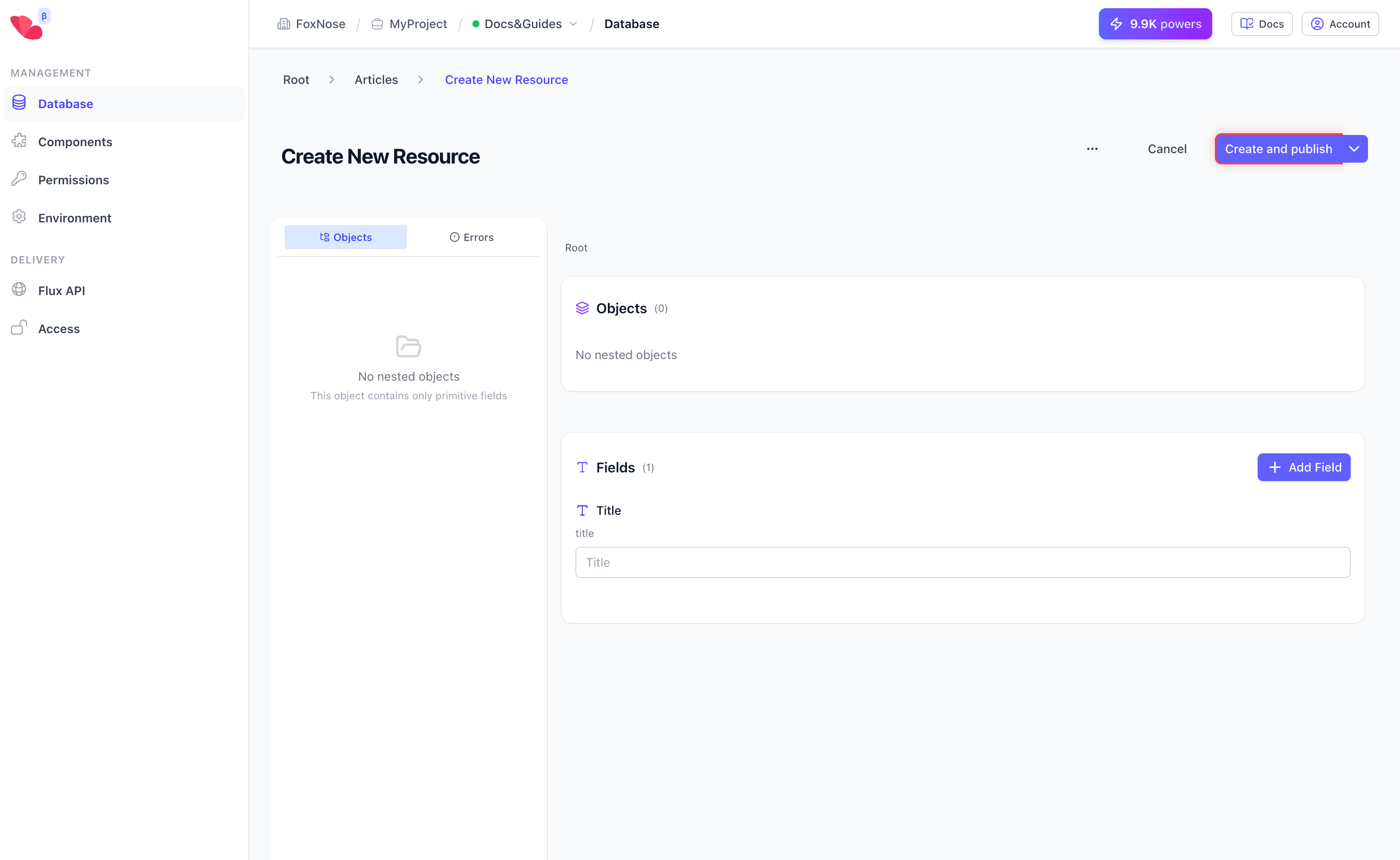
- The resource editor opens with fields defined in your schema.
Step 3 – Fill in the Content
The editor displays all fields from your published schema:
- Required fields are marked and must be filled before saving.
- Text fields accept plain text or rich content depending on configuration.
- Vectorizable fields will be automatically indexed for semantic search after publishing.
Fill in each field according to your content needs. For example:
- Title: A descriptive headline
- Body: The main content text
If your schema includes localized fields, you can switch between language tabs to enter content for each locale.
Step 4 – Save and Publish
You have several options for saving:
| Action | Result |
|---|---|
| Create and publish | Saves the resource and makes it immediately available via Flux API |
| Create as draft | Saves without publishing; use the dropdown next to the button |
| Cancel | Discards all changes |
For most use cases, click Create and publish to save your content and make it available to your applications.
Step 5 – Verify the Resource
After creating, you'll return to the collection's Content tab where your new resource appears in the list. You can:
- Click the resource to edit it
- Use the menu (three dots) to delete or duplicate it
- Filter resources using the dropdowns above the list
Working with Revisions
FoxNose automatically tracks content history through revisions:
- Each edit creates a new revision
- Published revisions are served via Flux API
- You can view revision history from the resource detail page
This allows you to roll back changes or audit content modifications over time.
Next Step
You have content — now let's make it accessible via API.